¶ User Guide: After add to cart from the wishlist
Choose what happens after a customer adds a wishlist item to the cart from the wishlist drawer or wishlist details page.
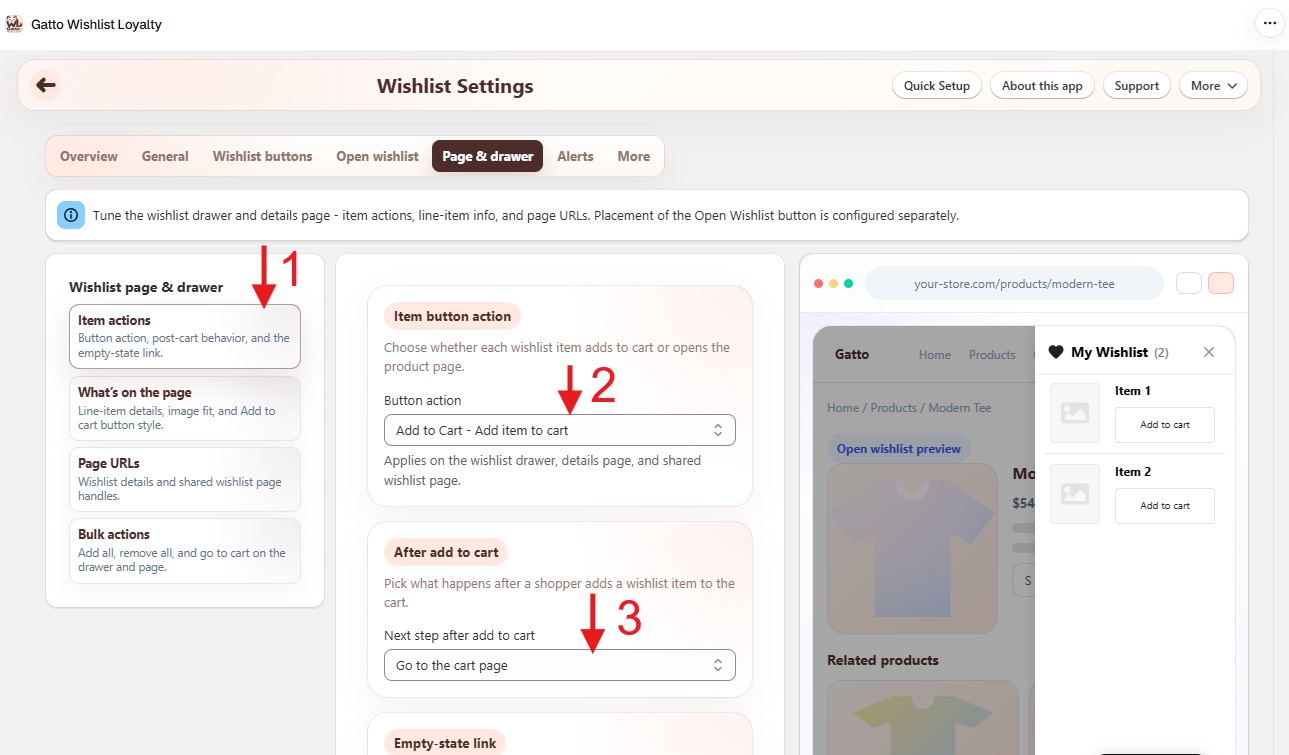
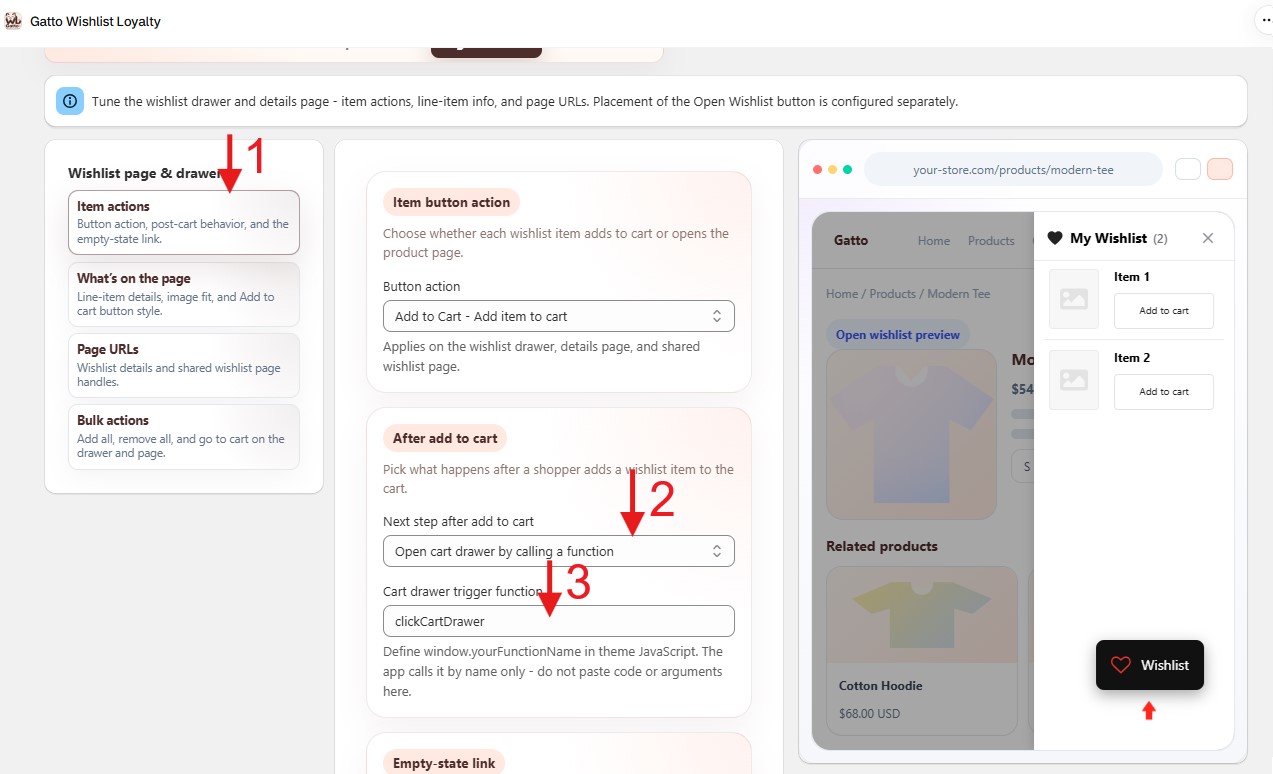
Open the setting: Wishlist Settings → Page & drawer → Item actions → After add to cart → Next step after add to cart.
Published guide: Trigger cart drawer
Plan note: The two cart drawer options are paid only. On Free they are hidden. If an older paid value is still saved, the storefront falls back to the cart page.
¶ Options (summary)
| Option | Plan | What happens |
|---|---|---|
| Redirect to the cart page | All | Default. Opens /cart. |
| Redirect to checkout | Paid | Goes to checkout. |
| Redirect to a specific URL | Paid | Redirects to the URL you enter. |
| No redirect | All | Keep or remove the item in the wishlist, with or without reload. |
| Trigger cart drawer (click element) | Paid | Clicks a theme control (CSS selector) to open the cart drawer. |
| Trigger cart drawer (call function) | Paid | Calls a global JavaScript function on window. |
Applies to a single-item add and Add all to cart.
¶ Trigger cart drawer (click element)
Enter the CSS selector for the control that opens the cart drawer - often the header cart icon.
- Dawn / Online Store 2.0 examples:
#cart-icon-bubbleorcart-icon-bubble - Use a class, id, or tag (same idea as the product-card selector in Wishlist Settings). Do not paste a code snippet.
- If the element is missing or not visible, customers are sent to the cart page instead.
¶ Trigger cart drawer (call function)
Enter the name only of a function on window, for example clickCartDrawer or clickCartDrawer(). The app strips trailing () and calls that function. Do not paste code or arguments into the field.
Example in a theme asset or custom script:
window.clickCartDrawer = function () {
  document.querySelector("cart-drawer")?.open?.();
};
- The app may pass one optional context object, for example
{ source: "gatto-wl", action: "after_add_to_cart_from_wishlist" }. Your function can ignore it. - One global name only - no dots (
MyTheme.openCartis not supported). Wrap theme APIs in a function onwindow. - If the function is missing or throws, customers are sent to the cart page.
¶ Tips
- Cart drawers belong to the theme. Results depend on how your theme implements cart.
- After add to cart, the wishlist drawer closes before the cart drawer is triggered.
- Test on the live theme after saving. If the drawer does not show the new items, use the function option and refresh the drawer inside your function.