¶ User Guide: Loyalty Rewards
Create redeem options so members spend points for discounts, free shipping, free products, gift cards, or store credit.
Open: Loyalty Settings → Rewards
Published guide: Loyalty Rewards
¶ Before you start
- Enable the program and keep Redeeming status Active.
- Some reward types need higher plans or extra Shopify scopes (gift cards).
¶ Add a reward
- Open Loyalty Settings → Rewards.
- Click Add reward under Ways to redeem.
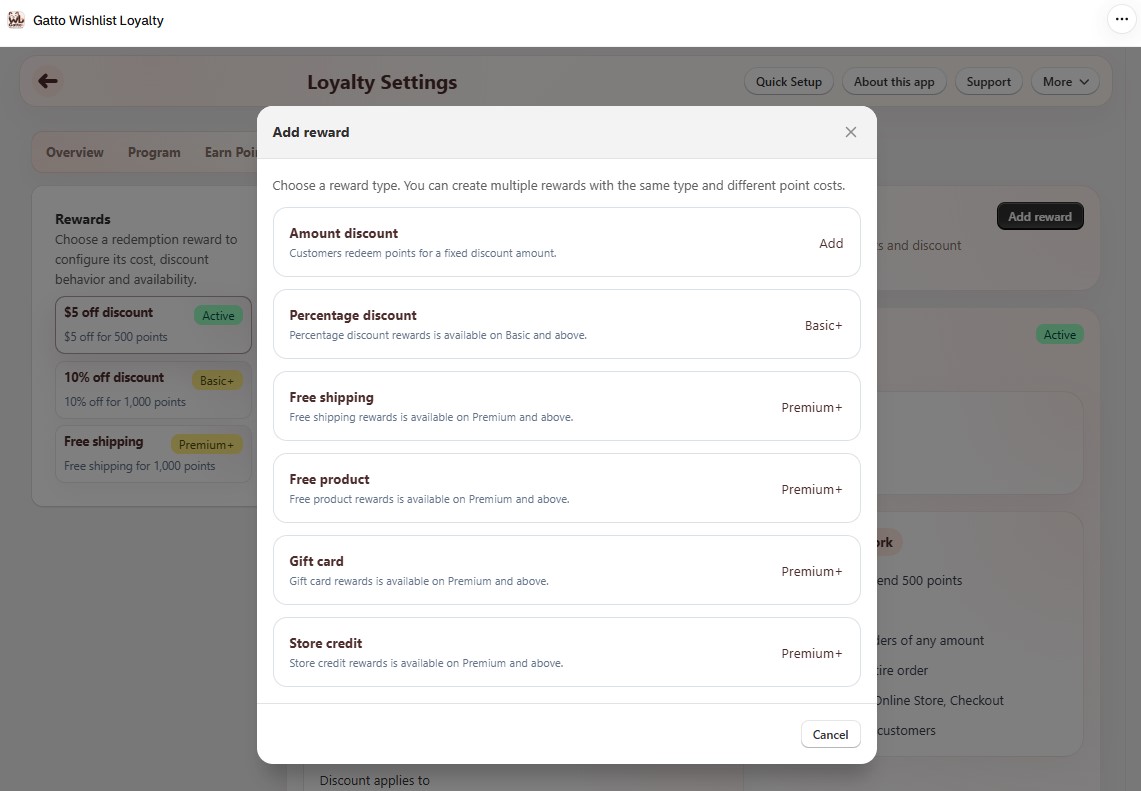
- Choose a type:
| Type | Typical plan |
|---|---|
| Amount discount | Free+ |
| Percentage discount | Basic+ |
| Free shipping | Premium+ |
| Free product | Premium+ |
| Gift card | Premium+ (needs gift card scopes) |
| Store credit | Premium+ |
¶ Configure the selected reward
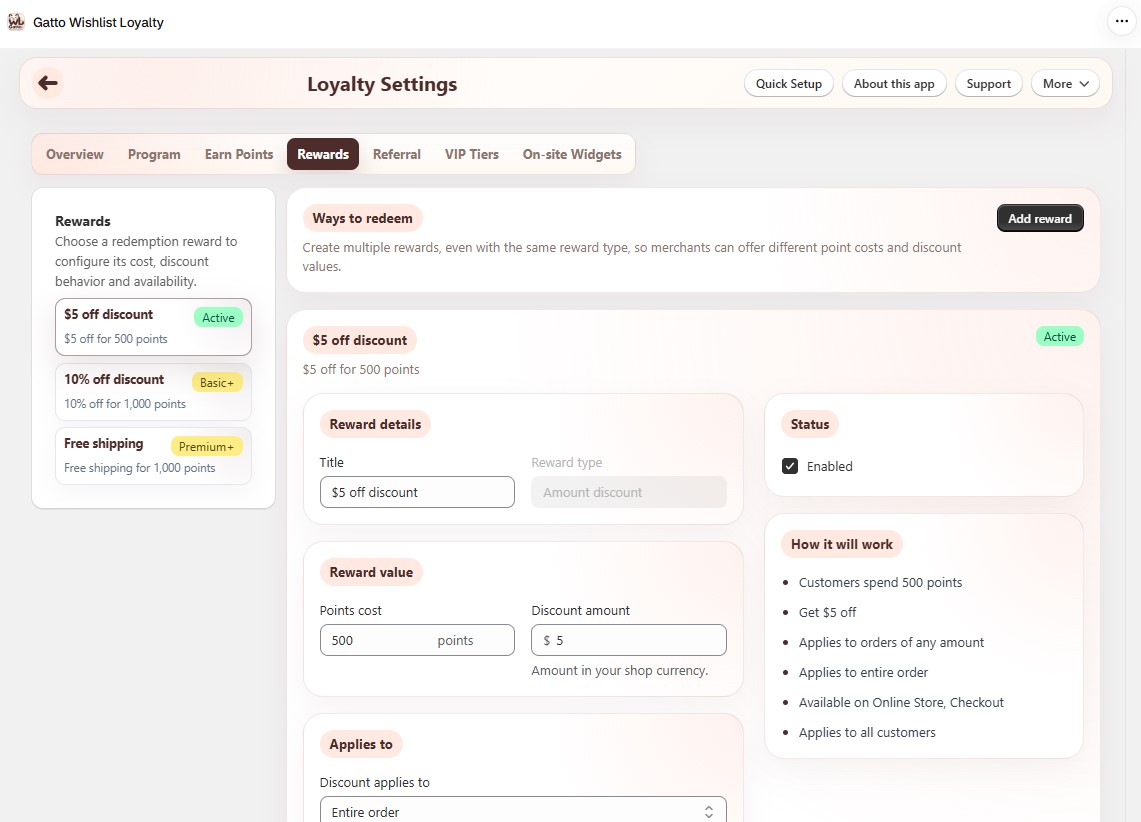
Use the left list to open each reward. Common sections:
- Reward details - title and type.
- Reward value - points cost and discount / gift card / store credit amounts (or free-shipping caps).
- Product targets - products and optional variants (free product).
- Applies to - entire order or specific collections.
- Minimum requirement - optional minimum purchase.
- Discount code - optional code prefix.
- Combinations - whether the code stacks with order, product, or shipping discounts.
- Limits and availability - Online Store / Checkout channels, redemptions per customer.
- Enable or disable the reward in the status panel.
¶ Storefront
Members redeem from the Rewards launcher / panel (On-site Widgets). They receive a one-time discount code, gift card, or free-product code depending on the reward type.
If the checkout UI extension is enabled for your store, members can also redeem during checkout.
¶ Tips
- Keep Redeeming status Active under Program or members cannot spend points even if rewards are listed.
- After adding a reward, redeem once as a test customer and confirm the code works at checkout.
- Gift card rewards fail quietly if gift card scopes are missing - reinstall/update the app permissions if needed.
- Match point costs to your purchase earn rate so a typical order can afford at least one reward.