¶ User Guide: Set up Loyalty rewards
Turn on the loyalty program, set earn and redeem rules, then check the storefront Rewards launcher and loyalty panel. Loyalty uses the same app embed as Wishlist.
Published guide: Set up Loyalty rewards
¶ Before you start
- Enable the app embed on the live theme.
- Open Loyalty Settings.
¶ 1. Program
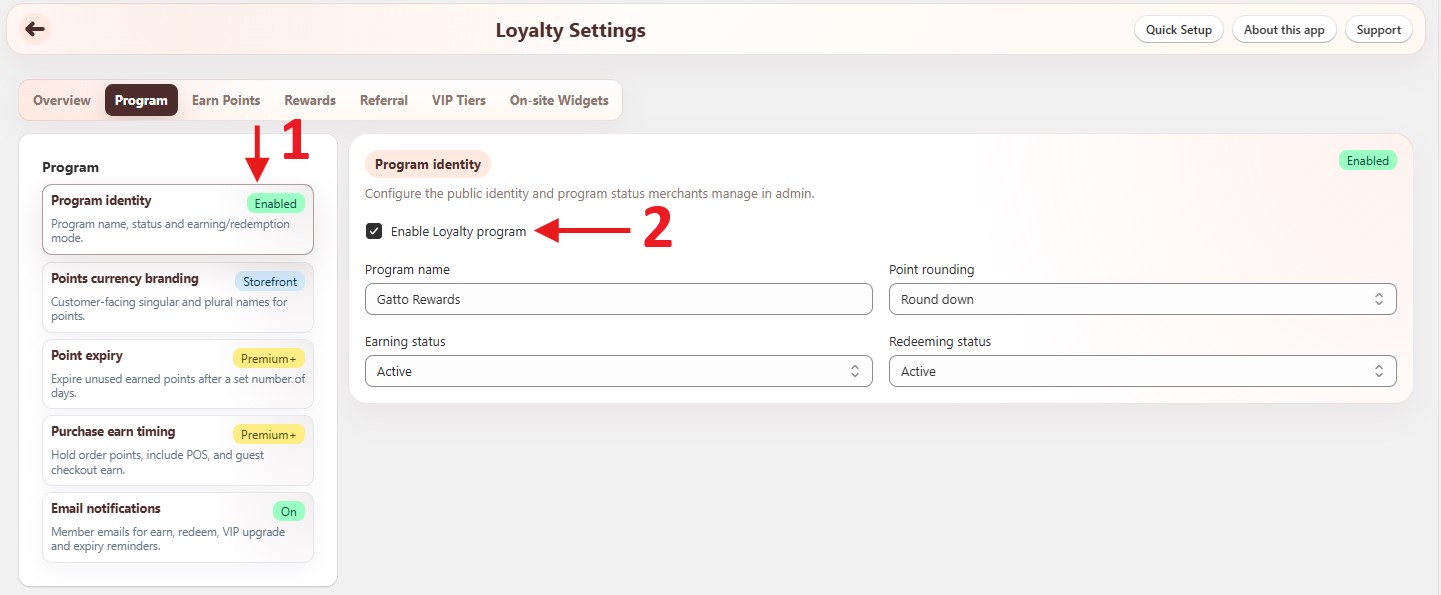
Loyalty Settings → Program
- Under Program identity, enable the program and set the program name.
- Set point names under Points currency branding (singular / plural).
- Choose whether earning and redeeming are active (you can pause either without turning the whole program off).
¶ 2. Earn Points
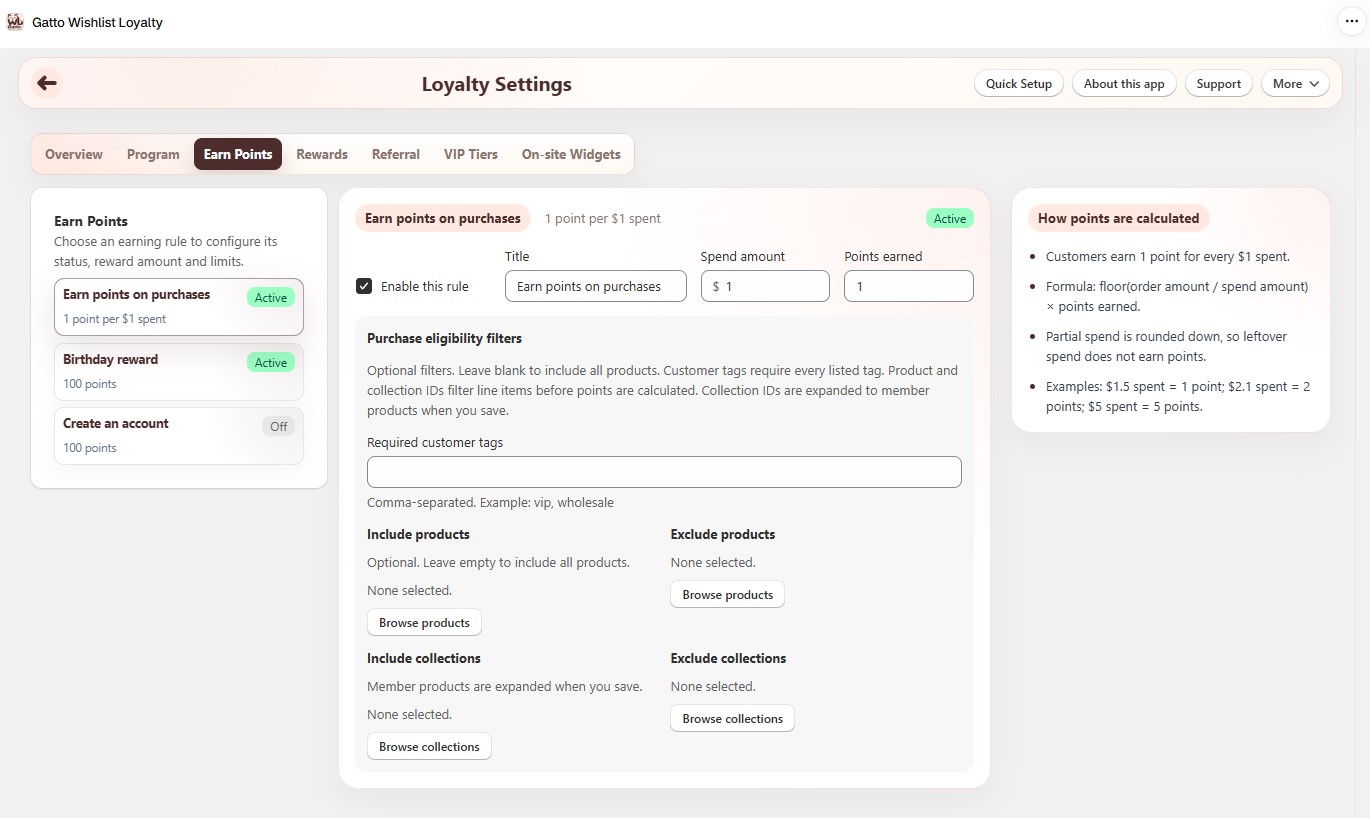
Loyalty Settings → Earn Points
- Set the purchase rate (points per amount spent) and rounding.
- Optional product or collection pickers limit which items award purchase points.
- On Basic+, enable Create an account and Birthday reward under the same Earn Points sidebar when you want those bonuses.
¶ 3. Rewards
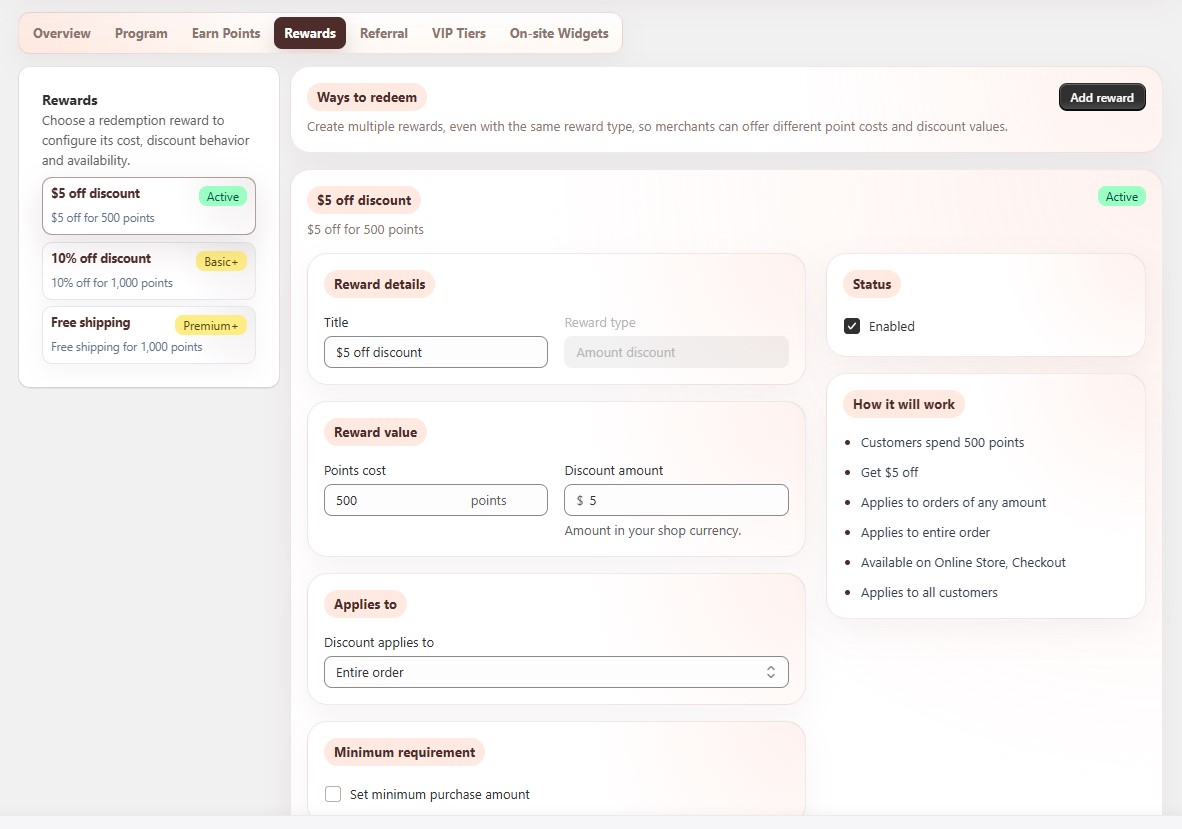
Loyalty Settings → Rewards
- Add at least one redeem option (discount, gift card, store credit, free shipping, or free product, depending on plan and Shopify scopes).
- Customers receive a one-time Shopify discount code, gift card, or free-product code from the loyalty panel.
- Gift card rewards need
read_gift_cards/write_gift_cardson the app install.
¶ 4. On-site Widgets
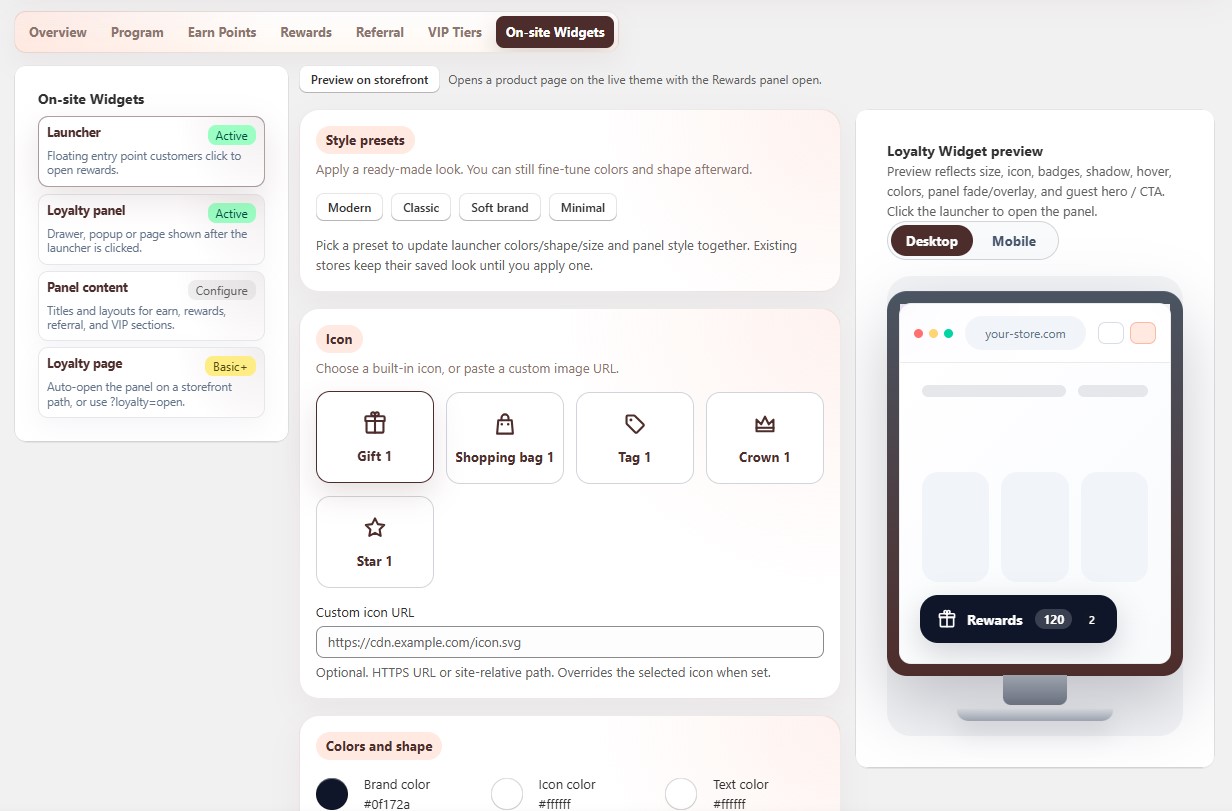
Loyalty Settings → On-site Widgets
- Apply a launcher preset if you want a quick look (Modern is recommended for new stores).
- Keep Overview, Earn, Rewards, and History on for a complete program.
- Turn on Referral, VIP, and Missions tabs only when those programs are enabled.
- Choose panel display mode (drawer / popup / full page) and guest view options as needed.
- Optional hide while scrolling for the floating button is off by default - leave it off unless you want a cleaner scroll on long pages.
Place the Rewards launcher so it does not cover theme controls (use Opposite corners or Stack when Wishlist floating is also on). Preview updates in the settings panel. See On-site Widgets for full detail.
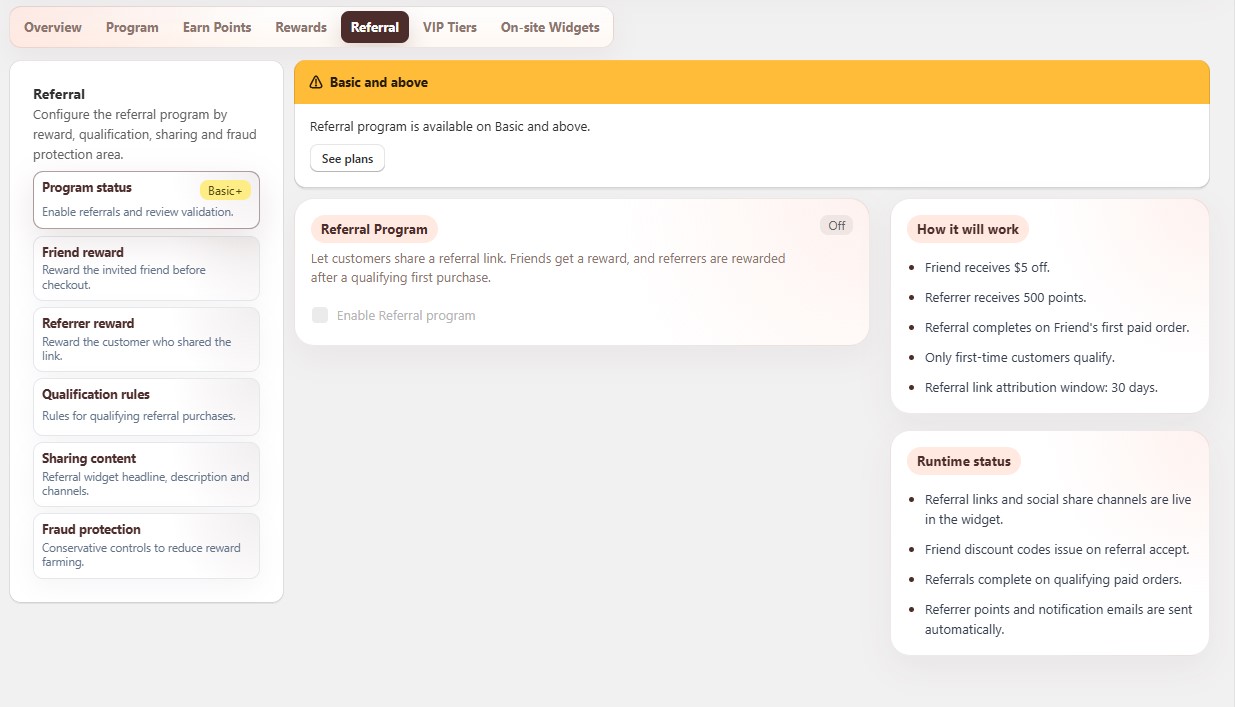
¶ 5. Referral (optional)
Loyalty Settings → Referral
- Friend and referrer rewards, qualification, and share channels (copy, email, Facebook, X, WhatsApp).
- Complete-when rules must match how you fulfill orders (paid, fulfilled, or after a return window).
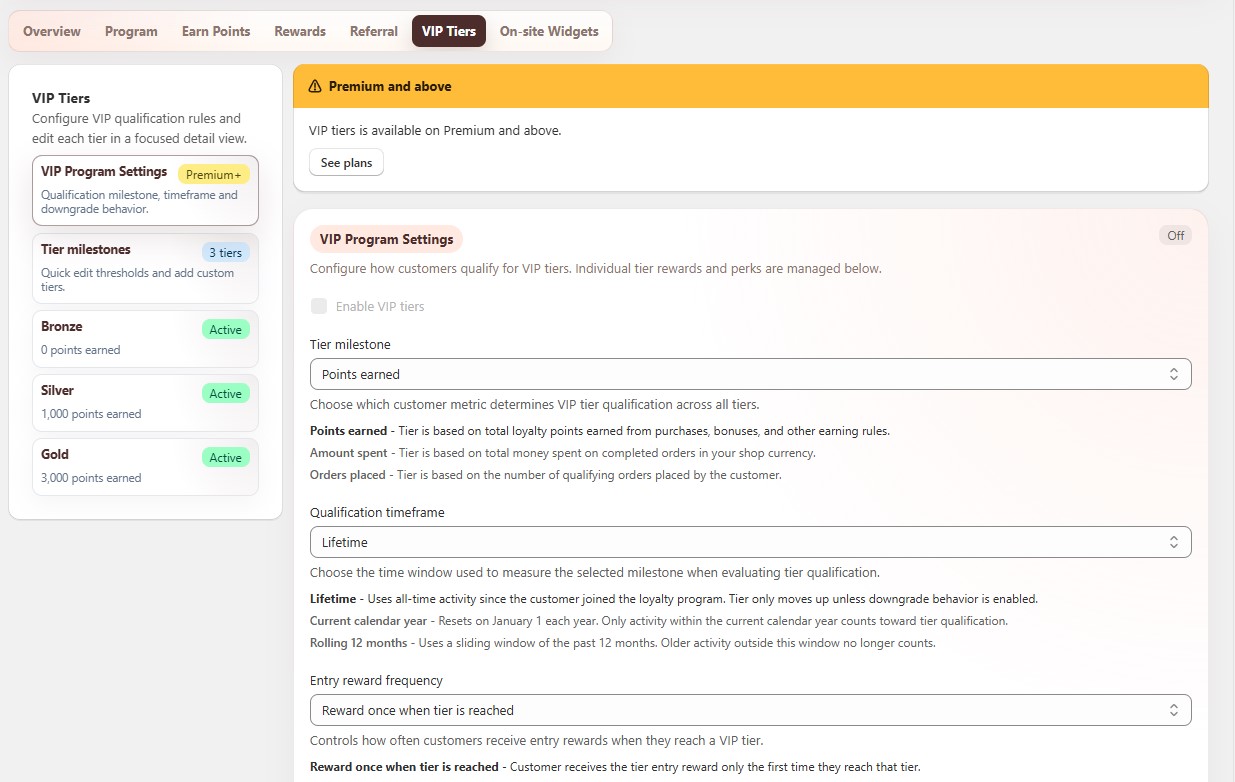
¶ 6. VIP Tiers (optional)
Loyalty Settings → VIP Tiers
- Milestone type, timeframe, rewards, and downgrade behavior.
- The loyalty panel can show progress toward the next tier.
¶ 7. Check the storefront
- Log in as a test customer.
- Open the Rewards launcher.
- Redeem a test reward.
- Place a paid test order.
- Confirm points on Loyalty Members and the “you earned points” toast on the storefront.
¶ Other admin pages
These are not inside Loyalty Settings, but they are part of the same program:
| Page | Use |
|---|---|
| Loyalty Members | Look up a customer, adjust points, see history. |
| Loyalty Reports | Points issued / redeemed, members, trends (Home also shows a 7-day snapshot). |
| Campaigns | Time-boxed earn or bonus rules. |
| Missions | Extra earn tasks shown in the loyalty panel when enabled. |
¶ Related
- Loyalty Overview - Set up loyalty program wizard
- Loyalty Program settings
- Earn Points
- Loyalty Rewards
- On-site Widgets
- Loyalty Referral
- Loyalty VIP Tiers
- Loyalty Members
- Loyalty Reports
- Loyalty Campaigns
- Loyalty Missions
- Loyalty Referral Reviews
- Home Dashboard
- Email settings - loyalty and wishlist emails
- Activate the app embed